Friday, October 28, 2011

Exchange 2010 SP1 Update Rollup 6 Available

An update for Exchange 2010 SP1 has just released and can be downloaded at: Exchange 2010 SP1 Update Rollup 6 Download. This will take you Exchange version up to 14.1.355.2

For a description of all the included fixes, see KB 2608646

For those of you running DAGs, please see the following article: Applying Updates to Exchange 2010 SP1

If you are running Forefront, it is important to disable Forefront protection during the update:

  • Before running patch: fscutility /disable
  • After running patch: fscutility /enable

Wednesday, October 12, 2011

Lync 2010 How-To Custom Help/Training Website

Recently, Microsoft release a great reference website to help out with training and adoption: Lync Adoption and Training Kit.  One of the tools within this kit is the Lync How-To custom intranet site.

Lync How To - Download Website

This will allow your organization to create a completely customizable quick reference portal for users to use to learn how to do perform common Lync tasks.  This includes step-by-step instructions and videos.  Later in the post I will also show how to customize the help URL within the Lync client to point to this portal.

Installing the Portal

The How-To portal can be installed as a Silverlight or HTML solution.  The Silverlight version will offer a rich experience with integrated video player.  If the HTML version is used, then videos will be launched using the local media player on the desktop.  This post will be installing the Silverlight version of the portal.

The first step is to copy all of the contents to a location on a web server.  In my example, I am copying the files to my Lync Front-End server since web services is installed and already being used.  I have also chosen to rename the rolodex.html file (primary launch file) to a better name for the URL that I want to publish: LyncHelp.html

Lync How To - File Copy

Now within IIS Manager, I will add a new Virtual Directory under the Internal Website and configure to point to my portal contents:

Lync How To - IIS add

Lync How To - IIS add - configure

Since I have two Front-End servers in my pool, I will replicate the same steps on my other server.  Now I can enter in the URL in my web browser to access the How-To portal:

Lync How To - default website

Customizing the Portal

The default How-To portal offers instructions and videos on all aspects of the Lync client: IM/P, voice, video, Online Meetings, Group Chat, Attendant console, etc.  In your environment, you may not have all the functionality enabled and want to hide those components to not confuse the users.  This can be done by modifying the rolodex.xml file in the folder location of the source files.

In my example, I am going to hide the “Group Chat” category and also the “Voice and Video –> Manage Voice Mail” sub-category.

Lync How To - pre-disable - markup

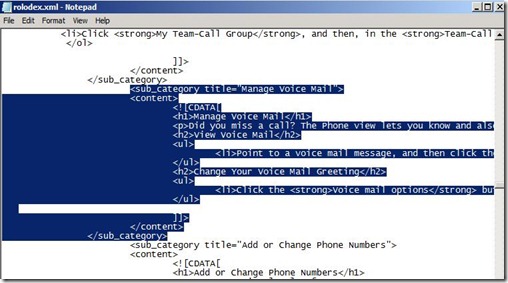
Now open up the rolodex.xml file and comment out (or delete) the sections that we want to hide:

Lync How To - delete group chat

Lync How To - delete manage vm

After refreshing the site, we will see that those sections have been removed:

Lync How To - disable

The portal is completely customizable based on the functionality that has been enabled for the users.  The “Lync_HowTo_AdminGuide.doc”, that is part of the initial download, describes more ways to modify the content and brand the portal.

Configuring the Lync Client to Point to Portal

The Lync client has built in help by pressing the “F1” key or by selecting help from the Lync menu:

Lync How To - client help

This takes you to Microsoft Online help:

Lync How To - web help default

We will now modify the Global Lync client policy so that the Help function within the Lync client will now point to our customized Lync portal.  This can be accomplished by running the following command:

Set-CsClientPolicy Global –CustomizedHelpUrl <WebURL> –EnableEnterpriseCustomizedHelp $true

Lync How To - Customized URL

Hmmm…that didn’t work.  If I use the command referenced in the screenshot, the URL ends up adding a bunch of “junk” to the end resulting in an invalid address:

Lync How To - client help error

I found this Technet Forum post that explains the error and workaround.  After implementing the “c_redir.aspx” file (with the the references pointing to my website) and repointing the URL to https://lyncwebint.twhlab.com/lynchelp/c_redir.aspx, the webpage worked as expected.

lync how to - new command

Summary

The Lync How-To portal is a great resource that allows users to get instructional help on common Lync tasks.  I encourage everyone to implement this and communicate that this is available.  This is a very valuable tool to deploy.

Hope this helps.

Monday, October 3, 2011

BUG: Lync Stress Tool and SQL Named Instances

The Lync Server Stress and Performance Tool has a major flaw when using a named SQL instance for the Lync back-end databases.  This post is based on the 7577.120 version of the tool and will not go into all of the ins and outs of the tool.

Problem:

First off, the GUI and field descriptions in the User Creation tool are very misleading.   Looking at the “Server” tab, it seems pretty straight forward on what to enter in the SQL fields…

Lync Stress - Server Tab - markup

Not the case, according to the Documentation, the following descriptions are used for those fields:

  • SQL BE Machine – type the name of the SQL Server Back End physical node
  • SQL Instance – type the database name

The database name in the Instance field?  Ok, so where do I put my Instance name?  All good questions… the problem is that this is the bug.  The tool does not allow for the SQL instance to be properly entered.  The following examples show different permutations trying to get the right information entered to represent the actual topology.

Symptoms:

Note: my actual SQL config is LABSQL01\Lync (Servername\Instance)

Variation #1:

Lync Stress - Config - Server - Instance

The tool will refer to the database and instance name as “Lync” (obviously, my database is not named “Lync”):

Lync Stress - Server - Instance

Variation #2:

Lync Stress - Config - Server - Database

The tool will refer to the database and instance name as “RTC”(obviously, my SQL instance is not named “RTC”):

Lync Stress - Server - Database

Variation #3:

Lync Stress - Config - ServerInstance - DB

The tool will add “RTC” as part of the Instance name and also the DB name:

Lync Stress - ServerInstance - DB

Variation #4:

Lync Stress - Config - Server - InstanceDB

The tool will add “Lync\RTC” as part of the Instance name and also the DB name:

Lync Stress - Server - InstanceDB

Conclusion:

Basically whatever is entered into the “SQL Instance” field will be used as the Instance and database name.

This could potentially be a great tool to use in the field, but currently it is only useful in a handful of deployments (Standard Edition or default instance installations of SQL back-end).  This has been reported to Microsoft and has been acknowledged as a known issue.  Hopefully a new release will soon be out.

Friday, September 23, 2011

Exchange 2007 SP3 Update Rollup 5 Available

An update for Exchange 2007 SP3 has just released and can be downloaded at: Exchange 2007 SP3 Update Rollup 5 Download

This brings the build number to: 8.3.213.1

  • For a description of all the included fixes, see KB 2602324

If you have a clustered environment, please see this article: Applying Exchange 2007 Update Rollups to Clustered Mailbox Servers

If you are running Forefront, it is important to disable Forefront protection during the update:

  • Before running patch: fscutility /disable
  • After running patch: fscutility /enable

Also remember to disable or remove all third party software during the upgrade (like antivirus, backup agents, disclaimers, etc.)

        NOTE: Update Rollup 6 for Exchange 2007 SP3 is scheduled for April 2012. More info from the Exchange Team

        Wednesday, September 21, 2011

        Understanding and Enforcing Licensing for the Lync Standard User CAL–Part 2

        In Part 1 of this article we looked at what functionality is included in the Standard CAL for Lync.  Now it is time to show how to enforce functionality by creating or modifying policies and configurations.

        There are three primary places that must be configured to enforce the Standard CAL:

        • Conferencing Policy
        • Meeting Configuration
        • Lync Outlook plug-in

        Conferencing Policy

        By default, Enterprise CAL functionality is enabled.  By looking at the Global conferencing policy (which gets assigned by default), we can see that most conferencing functionality is enabled:

        Lync SCAL2 - global default

        If your environment will only have Standard CAL users then all the following configurations can be performed at the Global scope level.  Looking at the parameters in the Global conferencing policy, we need to modify the following:

        • AllowIPAudio: False
        • AllowIPVideo: False
        • AllowUserToScheduleMeetingsWithAppSharing: False
        • AllowAnonymousParticipantsInMeetings: False
        • AllowPolls: False (wasn’t 100% sure on this one since it is not specifically defined in the licensing matrix)
        • EnableAppDesktopSharing: None (remember you can view, but not initiate)
        • EnableDialinConferencing: False

        I will create a new conferencing policy based on these criteria:

        New-CsConferencingPolicy –Identity “Conf-StandardCAL” –AllowIPAudio $false –AllowIPVideo $false –AllowUserToScheduleMeetingsWithAppSharing $false –AllowPolls $false –EnableAppDesktopSharing None –EnableDialinConferencing $false

        Lync SCAL2 - conf-scal

        Note the following:

        • Data Collaboration must be enabled to allow for multi-party File Transfer
        • Do not throttle the Max Meeting Size parameter to two or less since this would disable multi-party IM.  The following screenshots show the effect of throttling the Max Meeting Size:

        Lync SCAL - drag 3rd limited meetingLync SCAL - drag 3rd limited meeting - other

        Meeting Configuration

        By default, users within your company join Online Meetings as presenters.  You should change this default setting so that only the Organizer is the presenter.  This will prohibit Standard CAL users joining the meeting as a presenter.  The Organizer can always change per meeting at the time of scheduling the meeting within the Meeting Options of the Online Meeting.  To change the default behavior, navigate in the Lync Control Panel to Conferencing –> Meeting Configuration.  Select “None” in the Designate as presenter drop-down.

        Unfortunately, the only scope options are Global, Site, and Pool. Change the options of the Meeting Configuration so that “None” is set to the default presenter:

        Lync SCAL2 - meet config - markup

        Lync Outlook Plug-in

        Lync will install the Lync Outlook plug-in by default as part of the Lync client install.  This is great compared to OCS where it was two different installs, but can cause a confusing experience for Standard CAL users.  The only reason to use the plug-in is to schedule conferences. 

        Remember that Standard CAL users can attend a conference, but cannot initiate/schedule a conference.  If the Outlook plug-in remains visible, the Standard CAL user can still create an online meeting.  My suggestion is to disable the Lync Outlook plug-in, this will not prohibit them from attending a meeting that they are invited to.

        The registry setting that controls the load behavior of the Outlook plug-in is:

        HKEY_CURRENT_USER\Software\Microsoft\Office\Outlook\Addins\UCAddin.UCAddin.1\

        • DWORD: LoadBehavior
        • Value (Decimal): 2

        This can easily be rolled out and applied to StandardCAL users with a GPO:

        Lync SCAL2 - gpo

        Part 2 of this post describes how to enforce the Standard CAL Lync settings described in Part 1.  Licensing and interpretation of licensing is always tough, so if you feel that I have misrepresented the licensing provided to the Standard CAL user or feel that I have missed a configuration, please leave a comment.

        Thursday, September 15, 2011

        OCS R2 September 2011 Updates Released

        Looks like OCS R2 just got better.  Microsoft has released some updates for OCS 2007 R2.

        Here are the components that were updated for this round of updates:

        Server Updates (6907.236) - KB 968802

        Note: As always, the easiest way to make sure your server is up to date across all components is to use the Cumulative Server Update Installer (ServerUpdateInstaller.exe package)

        Client Updates

        • Communicator Client (6907.236) – KB 2590699
          • One of the fixes included is IM and call history are not stored in the default Exchange mailbox correctly (KB 2569723)
        • Attendant Console (6907.236) – KB 2590692

        Group Chat (6907.236)

        Monday, September 12, 2011

        Understanding and Enforcing Licensing for the Lync Standard User CAL–Part 1

        I think we can all agree that Microsoft licensing is confusing.  Most products have two types of user CALs: Standard and Enterprise.  Lync is even more confusing with three different user CALs: Standard, Enterprise, and Plus.  This article explains all the different CALs and what functionality is contained in each.  I have read the reference many times and can still walk away with my head spinning. 

        Part 1 - Explain and point out some of the misconceptions about the Standard CAL. 

        Part 2 – Show how to configure Lync to enforce the features of the Standard CAL. 

        I will never profess to be a licensing expert and encourage others to leave comments based on their interpretations.

        Let’s start by taking a look at the features mentioned in the article for the Standard CAL:

        • PC-to-PC and multi-party IM
        • PC-to-PC and multi-party File Transfer
        • PC-to-PC computer audio
        • PC-to-PC computer video
        • Group Chat
        • Skill Search
        • Rich Presence
        • PC-to-PC IM, audio, and video with federated and PIC contacts
        • Ability to attend conferences as an attendee (not a presenter) and participate with audio/video, view shared applications, view/write on whiteboard
        • View application sharing session

        So, I was previously under the impression that all PC-to-PC communications is allowed with the Standard CAL, but this is not the case.  What is missing from this list?  The following PC-to-PC communications are listed in the Enterprise CAL section:

        • Initiate ad-hoc application sharing (P2P or multi-party)
        • Initiate ad-hoc whiteboarding (P2P or multi-party)

        Basically, as a Standard CAL user, you have the right to:

        • All PC-to-PC communications except initiating a desktop/application sharing session or whiteboarding
        • Multi-party IM and file transfer
        • Attend web conferences as a participant only

        Anytime you want to add a third+ person to a conversation or web conference that will require an Enterprise CAL.  Anytime you want to schedule a meeting or audio conference that will require an Enterprise CAL.

        How do we enforce the Standard CAL list of features?  Stay tuned to Part 2.

        Again, comments are welcome on your interpretation of the licensing features.