Sunday, February 17, 2013

Loads of Exchange Server Updates

I am quite behind on this one, but the Exchange Team has released quite a few Exchange updates for different versions.  Here are all the details:

Exchange 2010 SP3

Exchange 2010 SP3 has been released and will take your Exchange version up to 14.3.123.4

For a description of all the included fixes and features, see KB 2808208

Remember that this download can be used for a fresh install of Exchange Server 2010 and that you can go directly to this release without installing Update Rollups for your current version.

Reference the Exchange Team Blog for additional information.

Also released were the updated UM Language packs for SP3


Exchange 2010 SP2 Update Rollup 6 Available

An update for Exchange 2010 SP2 has just released and can be downloaded at: Exchange 2010 SP2 Update Rollup 6 Download.

This will take you Exchange version up to 14.2.342.3

For a description of all the included fixes, see KB 2746164

Reference the Exchange Team Blog for additional information.


Exchange 2007 SP3 Update Rollup 10 Available

An update for Exchange 2007 SP3 has just released and can be downloaded at: Exchange 2007 SP3 Update Rollup 10 Download.

This will take you Exchange version up to 8.3.298.3

For a description of all the included fixes, see KB 2788321

Reference the Exchange Team Blog for additional information.

Friday, February 15, 2013

Cross-Post: Lync Environment Documentation Script

This post is just to get the word out a bit wider about a script that my colleague, Chris Cook, has developed. 

Basically this script will gather complete information about a Lync environment (server specs, topology, networking, DNS, certificates, etc) and then auto-generate a Word report and Visio diagram.

Please go HERE and read additional information and download instructions.

Monday, January 28, 2013

Can I Install Lync Server 2010 in a Native Lync Server 2013 Environment?

With a background in Exchange Server, you always had to be careful about installing new versions or decommissioning the last server of an older version within an environment.  So I was wondering if it was possible to install/introduce a Lync Server 2010 Front-End server into a completely native Lync Server 2013 environment (an environment that has never had Lync Server 2010 in it).  Also, if it is possible, what is the experience and is it actually functional.

Short Answer: YES it is possible

My Environment:

  • Domain Controller – Windows Server 2012
  • Lync Server 2013 SE – Windows Server 2012
  • Exchange Server 2013 – Windows Server 2012
  • Office Web Apps 2013 – Windows Server 2012

Current Topology:

Lync Native - TB before

Lync Native - CP before

Adding a Lync Server 2010 SE server in the Topology Builder and published:

Lync Native - TB After

I have prepped a server for the Lync Server 2010 SE and installed all pre-req’s.  Starting the Deployment Wizard for the Lync Server 2010 shows that Active Directory is already fully prepared!

Lync Native - 2010 DW

I won’t bore you with the Lync Server 2010 install, but you can see that the Lync Control Panel now shows both 2010 and 2013 in the environment:

Lync Native - CP after

Now it is time to rehome some users to the Lync Server 2010 pool and test things out:

Lync Native - CP users

Looks like everything is working:

Lync Native - test

This post explored whether Lync Server 2010 could be introduced into a native Lync Server 2013 environment.  The installation went smooth and seems like all functionality works as expected.

Tuesday, January 1, 2013

Microsoft MVP Award for 2013

I am pleased to announce and very honored, that I have been re-awarded the Microsoft MVP award for 2013.

MVP2013

I appreciate everyone that reads my blog and keeps up with me on twitter (@twharrington). I will strive to keep contributing to the community and hope that what I publish helps you out in some way.

Happy New Year!

Saturday, December 1, 2012

Disabling IM for Lync 2013 Client

I suppose there are a few reasons that you might want to disable IM functionality for certain users in Lync.  This can be easily accomplished by modifying the registry (which can be controlled with a GPO).

Before we get started, let’s look at what typical options would look like for a Lync 2013:

Lync 2013 - Disable IM - IM enabled

As you can see, the IM button is present and active for my contacts.  The location in the registry to implement policies for Lync 2013 are in a different location compared to earlier versions.  Now you can locate or create policies in the HKLM (or HKCU)\Software\Policies\Microsoft\Office\15.0\Lync

You can disable IM by running the following command from an elevated command prompt:

reg add HKLM\Software\Policies\Microsoft\Office\15.0\Lync /v DisableIM /t REG_DWORD /d 1 /f

Lync 2013 - Disable IM - cmd

This will result in creating a new DWORD “DisableIM” with a value of “1”:

Lync 2013 - Disable IM - registry

After exiting and restarting the client, the IM icon is no longer visible:

Lync 2013 - Disable IM - IM disabled

This post shows you how to disable IM functionality within the Lync 2013 client.

Monday, November 26, 2012

Administering Lync 2010 and 2013 Coexistence

As everyone is out migrating their Lync 2010 environments to Lync 2013, you must plan for coexistence.  This post will discuss the appropriate tools to use to administer certain scenarios once Lync 2013 is introduced into the environment.

Topology Changes

For any Topology changes (including adding Lync 2010 pools), you must use the Lync Server 2013 Topology Builder.  This is true even if a Lync 2010 pool is still hosting the CMS.  If you attempt to open the Lync Server 2010 Topology Builder, you will receive the following error:

“The topology is from a later version of the product.  Use the correct version of Topology Builder to open this topology.”

Lync Coexist Admin - 2010 Topo

Moving Users Across Pools of Different Versions

For all user moves across pool versions, the Lync Server 2013 tools must be used (Control Panel and Management Shell).  If you try to move a user from Lync 2010 to Lync 2013 or from Lync 2013 to Lync 2010 with the Lync 2010 tools, you will get the following error:

“Move to or from the future version of the product is not supported.”

Lync Coexist Admin - 2010 CP move to 2013 (error)

Moving Users Across Pools of Same Version

For all users moves across pools of the same version, that version of tools can be used to move the user.  This means that Lync 2010 tools can be used to move users between 2010 Lync pools and Lync 2013 tools can be used to move users between 2013 Lync pools.  Also, you can use the Lync 2013 tools to move Lync 2010 users between 2010 pools, but you cannot use Lync 2010 tools to move users between Lync 2013 pools.

Assigning User Policies or User Settings

Assigning user policies or changing user settings can be performed with either set of tools no matter what version of pool the user is homed on.

Summary

Below is a summary of the different scenarios above. 

  Lync 2010 Tools Lync 2013 Tools
Topology Changes

no

YES

Move user from 2010 to 2013 no YES
Move user from 2013 to 2010 no YES
Move user between 2010 pools YES YES
Move user between 2013 pools no YES
Assign user policies and settings YES YES

Conclusion

To avoid any confusion, I recommend using the Lync 2013 tools exclusively for any administrative tasks once you have introduced Lync Server 2013 into your environment.

Thursday, November 1, 2012

Exploring Default Installation and SQL Paths in Lync Server 2013

A shift has been made in Lync Server 2013 to process more SQL transactions local on the server than on Lync Server 2010.  One of the main reasons for this is to provide better resilience across all workloads (including user/conferencing services) compared to just voice resiliency in Lync Server 2010.  This post will review different installation paths of Lync components based on drives available at the time of installation.

First let’s review the SQL Express instances that are running local on the Lync Front-end servers.  In my example, I will be looking at the Standard Edition of Lync.  The Enterprise Edition Front-End server will only have LYNCLocal and RTCLocal SQL instances.

Lync 2013 - DB Location - 1234 SE Services

The following lists each SQL instance and the databases associated with it:

  • LYNCLOCAL
    • Lyss
  • RTC – located on local Standard Edition servers and in back-end SQL instance for Enterprise Edition
    • RTCab
    • CpsDyn
    • RgsConfig
    • RgsDyn
    • RTCShared
    • RTCXDS
  • RTCLOCAL
    • XDS
    • RTC
    • RTCDyn

I wanted to see what would happen to default installation locations based on drives available.  Here are the scenarios that I tested:

Scenario #1 – C: drive only, default installation path

In a very default installation with only a C: drive, obviously all components get installed in their default locations.  The following screenshots shows the location of each Lync component.

Drive configuration:

Lync 2013 - DB Location - 1 SE c only

Lync installation path:

Lync 2013 - DB Location - 123 setup location default

SQL installation paths:

Lync 2013 - DB Location - 1 SE C Only SQL Install

RTCReplicaRoot path:

Lync 2013 - DB Location - 1 SE C Only RTCReplicaRoot

Database and Logs paths:

Lync 2013 - DB Location - 1 SE C Only CsData

Note that the RTCLocal database and log for XDS will always be located on the C: drive in the SQL installation path

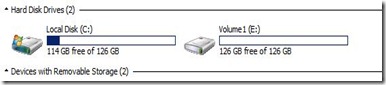
Scenario #2 – C: and E: drive, default installation path

The following screenshots shows the location of each Lync component.

Drive configuration:
Lync 2013 - DB Location - 2 SE c e

Lync installation path:

Lync 2013 - DB Location - 123 setup location default

SQL installation paths (on C: ):

Lync 2013 - DB Location - 23 SE CE SQL Install

Note that the RTCLocal database and log for XDS will always be located on the C: drive in the SQL installation path

RTCReplicaRoot, Database and Log paths for RTC, RTCLocal, and LYNCLocal instances (all on E: ):

Lync 2013 - DB Location - 2 SE CE CsData-RTCReplica

Note that you can tell what SQL instance each database belongs to by looking at the parent folder to the DBPath/LogPath folders.

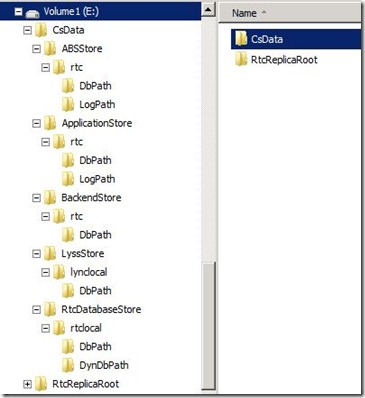
Scenario #3 – C:, E:, and F: drive, default installation path

The following screenshots shows the location of each Lync component.

Drive configuration:

Lync 2013 - DB Location - 3 SE c e f

Lync installation path:

Lync 2013 - DB Location - 123 setup location default

SQL installation paths (on C: ):

Lync 2013 - DB Location - 23 SE CE SQL Install

Note that the RTCLocal databases and logs (XDS) will always be located on the C: drive in the SQL installation path

RTCReplicaRoot, Database and Log paths for RTC, RTCLocal, and LYNCLocal instances (on E: ):
Lync 2013 - DB Location - 3 SE CEF E Volume

Note that you can tell what SQL instance each database belongs to by looking at the parent folder to the DBPath/LogPath folders.

Log paths for RTC, RTCLocal, and LYNCLocal (on F: )

Lync 2013 - DB Location - 3 SE CEF F Volume

Scenario #4 – C:, E:, and F: drive, Change installation path to E:

The following screenshots shows the location of each Lync component.

Drive configuration:

Lync 2013 - DB Location - 3 SE c e f

Lync installation path:

Lync 2013 - DB Location - 4 setup location

SQL installation paths (on C: ):

Lync 2013 - DB Location - 23 SE CE SQL Install

Note that the RTCLocal databases and logs (XDS) will always be located on the C: drive in the SQL installation path

Lync Program Files, RTCReplicaRoot, Database and Log paths for RTC, RTCLocal, and LYNCLocal instances (on E: ):

Lync 2013 - DB Location - 4 SE RTCReplicaRoot and lync install

Note that you can tell what SQL instance each database belongs to by looking at the parent folder to the DBPath/LogPath folders.

Log paths for RTC, RTCLocal, and LYNCLocal (on F: )

Lync 2013 - DB Location - 3 SE CEF F Volume