Saturday, August 18, 2012

Exchange 2010 SP1 Update Rollup 7 Available

An update for Exchange 2010 SP1 has just released and can be downloaded at: Exchange 2010 SP1 Update Rollup 7 Download.

This will take you Exchange version up to 14.1.421.0

For a description of all the included fixes, see KB 2743248

For those of you running DAGs, please see the following article: Applying Updates to Exchange 2010 SP1 and SP2

If you are running third party products (like anti-virus, etc), it is important that you disable them before updating.

Exchange 2007 SP3 Update Rollup 8 Available

An update for Exchange 2007 SP3 has just released and can be downloaded at: Exchange 2007 SP3 Update Rollup 8 Download

This brings the build number to: 8.3.279.3

  • For a description of all the included fixes, see KB 2734323

If you have a clustered environment, please see this article: Applying Exchange 2007 Update Rollups to Clustered Mailbox Servers

Remember to disable or remove all third party software during the upgrade (like antivirus, backup agents, disclaimers, etc.)

More information can be found on the Exchange Team Blog site.

Thursday, August 16, 2012

Installing Office Web Apps Server for Lync Server 2013

UPDATE: I have updated this post for Lync Server 2013 RTM, although some screenshots may still say “preview” on them.

Introduced in Lync Server 2013 is the requirement of Office Web Apps server to support the use of PowerPoint presentations in Lync Online Meetings.  The purpose of this post is to show the absolute minimum requirements in order to get Office Web Apps integrated and usable with the Lync Server 2013 environment.  This does not take into account high availability or other design decisions that may need to be made for your overall implementation.

Requirements and Prerequisites

Office Web Apps cannot be collocated on any Lync server, so I am starting off with a fresh installation of Windows 2008 R2 SP1 (Windows 2012 can also be used).  You will need to install the following on the Windows 2008 R2 server:

Next thing needed is to install supporting Windows Components.  For Windows 2008 R2, run:

Import-Module ServerManager

Add-WindowsFeature Web-Server,Web-WebServer,Web-Common-Http,Web-Static-Content,Web-App-Dev,Web-Asp-Net,Web-Net-Ext,Web-ISAPI-Ext,Web-ISAPI-Filter,Web-Includes,Web-Security,Web-Windows-Auth,Web-Filtering,Web-Stat-Compression,Web-Dyn-Compression,Web-Mgmt-Console,Ink-Handwriting,IH-Ink-Support

For Windows 2012, run:

Import-Module ServerManager

Add-WindowsFeature Web-Server,Web-Mgmt-Tools,Web-Mgmt-Console,Web-WebServer,Web-Common-Http,Web-Default-Doc,Web-Static-Content,Web-Performance,Web-Stat-Compression,Web-Dyn-Compression,Web-Security,Web-Filtering,Web-Windows-Auth,Web-App-Dev,Web-Net-Ext45,Web-Asp-Net45,Web-ISAPI-Ext,Web-ISAPI-Filter,Web-Includes,InkandHandwritingServices,NET-Framework-Features, NET-Framework-Core, NET-HTTP-Activation, NET-Non-HTTP-Activ, NET-WCF-HTTP-Activation45

Installation of Office Web Apps Server

Download the Office Web Apps Server and start the installation.  Default installation is fine:

Lync 2013 - OWA - install - mark

Configuration of Office Web Apps Server

The first step is to create an Office Web Apps Server farm.  I will do this by running the following command.  Note that I am only configuring an Internal URL for my lab and already have a certificate provisioned for the URL referenced.

New-OfficeWebAppsFarm -InternalURL “https://labad03app01.w15lab.local” –CertificateName “Office Web Apps Certificate”

Lync 2013 - OWA - PS create

Validate the configuration by navigating to the discovery URL of the Office Web Apps server.  In my case, that is https://labad03app01.w15lab.local/hosting/discovery

You should see something similar to the following XML output:

Lync 2013 - OWA - xml

If you get an error, try repairing .NET by running:

%systemroot%\Microsoft.NET\Framework64\v4.0.30319\aspnet_regiis.exe -iru

Lync 2013 - OWA - net repair

Configure Lync Topology

To add the Office Web Apps server to your Lync 2013 Topology, open Topology Builder and navigate to “Site –> Shared Components –> Office Web Apps Servers”.  Right-click and select “New Office Web Apps Server…”

Lync 2013 - OWA - TB

Next, type in the FQDN of your newly deployed Office Web Apps server and the discovery URL should auto-fill:

Lync 2013 - OWA - TB - add

Next validate (or assign) the Office Web Apps server to your Front-End servers:

Lync 2013 - OWA - TB - associate - markup

Publish your topology.

Validate Lync Functionality

The first things to validate for your Office Web Apps implementation is look at the Front-End servers Event Viewer.  In the Lync Server logs, you will see two different Events:

Event 41032 stating that Web Conferencing Server Office Web Apps Server (WAC) discovery succeeded:

Lync 2013 - OWA - event - 41032

Event 41034 stating that PowerPoint content is enabled:

Lync 2013 - OWA - event - 41034

If you see Event 41033 then something is wrong.  Go back and check all the previous steps.
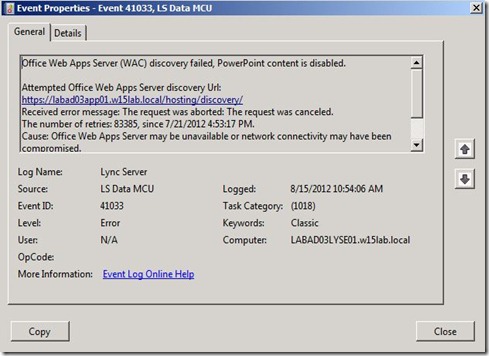
Lync 2013 - OWA - event - fail

Now on to validating PowerPoint uploads with the Lync client.  In this example, I am just going to start an ad-hoc conference with Meet Now and upload a PowerPoint presentation:

Lync 2013 - OWA - client1

Lync 2013 - OWA - client

This post described how to get an Office Web Apps server deployed and integrated with Lync Server 2013.

Monday, August 13, 2012

Customizing Lync Online Meeting Invitations in Lync Server 2013

NOTE: The following post is based on Lync Server 2013 Preview.  Procedures and screenshots are subject to change when Lync Server 2013 is RTM.

A big ask currently with Lync 2010 is how do we customize the Lync Online Meeting template.  Companies would really like to adjust text, add logos, or add/customize specific hyperlinks.

With Lync Server 2010, there was not a great way to do this.  Basically, the only supported option was to utilize Exchange Transport rules and key off of a hidden string to add text to the invitations.  Obviously, this was not a great solution.

Lync Server 2013 has added some ability to adjust the Lync Online Meeting invites.  This post will describe and demonstrate the options.

The default Online Meeting invitation for Lync 2013 look like the following:

Lync 2013 - Cust Invite - Default invite

The following customizations can be made for meeting invitations:

  • Adding Your Organization’s Logo
  • Adding a Custom Help or Support Link
  • Adding a Custom Legal Disclaimer Text
  • Adding a Custom footer text

Customizations are made within the Meeting Configuration settings and can be scoped on a Global, Site, or Pool level.  In my example, I will be adjusting the Global configuration of the Meeting Configuration.  To access the settings in the Control Panel, navigate to the Conferencing node –> Meeting Configuration tab:

Lync 2013 - Cust Invite - Control Panel

Edit the Global configuration.  Here you will find four corresponding fields to configured the customizations.

Lync 2013 - Cust Invite - Meeting Config - markup

Here you will need to add URLs that will be accessible by users who will receive the meeting invite and are expected to see the customizations.  So if you want external users to be able to view the customizations, these URLs need to be externally available without authentication.  For my example in my lab, my URLs will be internal URLs.

Lync 2013 - Cust Invite - Meeting Config - Custom - markup

Now when we initiate a new Lync Online Meeting invite, we will see the new components:

Lync 2013 - Cust Invite - Custom invite - markup

A few things to note.  The custom Help URL will just replace the default Help URL.  When clicking the link, it opens my customized help web page:

Lync 2013 - Cust Invite - Custom Help

When clicking the Legal link, it opens my customized disclaimer web page:

Lync 2013 - Cust Invite - Custom Disclaimer

If you are a powershell type admin, you can do the exact same configuration using the New-(Set-)CsMeetingConfiguration:

Lync 2013 - Cust Invite - powershell

This new functionality to easily customize the Online Meeting invitations is a welcomed addition to Lync 2013.

Wednesday, August 1, 2012

Disabling Password Expiration for Office 365

I use an Office 365 account (E3 SKU) for most of my personal email.  One of the things that bugs me, say every 90 days or so, is the password expiration.  Because there is no great notification through ActiveSync or Outlook Anywhere, I find my password expiring on me at the worst times.  Also, every 90 days or so, I tell my self that I am going to get around to setting my password to not expire.  Well today is that day!

I am sure there are a ton of blogs out there on this, but I decided to go ahead and document the process on my blog since I use my blog as a personal documentation repository for several things.

Step 1: Download and install the Microsoft Online PowerShell Module

There is no GUI option to disable passwords within the Office 365 portal, so powershell it is.  You can download the Microsoft Online Services PowerShell module here:

I downloaded the 64-bit module and started the install on my desktop:

O365 - PS download

Default options for the installation will be fine.

Step 2: Use PowerShell Module to Connect to Office 365

Open the Microsoft Online Service Module for Powershell and connect to Office 365 by running: Connect-MsolService.  This will prompt for credentials.  Enter credentials that have administrator rights within your online tenant. 

O365 - connect-cred

Step 3: Configure User for No Password Expiration

You can view the properties of your user account by running:

Get-MsolUser –UserPrincipalName <username> | fl

Below shows all the parameters that can be configured for the user.  I am focusing on the PasswordNeverExpires parameter:

O365 - get-user - markup

Now to set the account so that the password will not expire, I run:

Set-MsolUser –UserPrincipalName <username> –PasswordNeverExpires $true

O365 - set-user

Now I am set!

Tuesday, July 24, 2012

OCS R2 July 2012 Updates Released

Microsoft has released a few updates for OCS 2007 R2 Group Chat Server.

Here are the components that were updated for this round of updates:

Group Chat (6907.258)

Monday, July 16, 2012

Big Wave (15) Rolling In…

When Microsoft decided to roll-out (preview) the next collaboration wave, they did it with fireworks.  Today marks the day that Microsoft has released all “Wave 15” products to the public in “Preview” (beta) format.

Obviously, this is going to generate lots of great blog posts which I am really excited about.  There is going to be much more information releasing about this “Wave” in the coming days, but here are some links to get you started.

Lync Server 2013

  • Download –> HERE
  • Documentation –> HERE
  • What’s New –> HERE

Exchange Server 2013

  • Download –> HERE
  • Documentation –> HERE
  • CHM File –> HERE
  • What’s New –> HERE

SharePoint Server 2013

  • Download –> HERE
  • Documentation –> HERE
  • What’s New –> HERE
  • Deployment Guide eBook –> HERE

Office ProPlus 2013

    • Download –> HERE
    • Documentation –> HERE
    • CHM File –> HERE
    • Deployment Guide eBook –> HERE

    Other Miscellaneous Downloads –> HERE

    There is a lot to get through here, and I will be working on bringing you up to date articles explaining the new 2013 features and providing configuration and implementation help.

    What a great day!